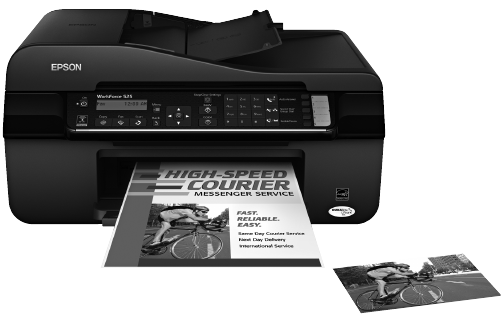
Epson WorkForce 520 Guida Utente
Navigare online o scaricare Guida Utente per Apparecchi multifunzione Epson WorkForce 520. Epson WorkForce 520 Manuale Utente
- Pagina / 64
- Indice
- SEGNALIBRI

- Quick Guide 1
- Contents 2
- Contents 3 3
- Network Setup 4
- Wireless Network Setup 7 7
- Wireless Network Setup 9 9
- Wireless Network Setup 10
- Next and go to step 4 12
- Next and 12
- Wireless Network Setup 13 13
- Entering Your SSID Manually 14
- Wireless Network Setup 15 15
- Install 15
- Wireless Network Setup 17 17
- Installing for the First Time 18
- Next to start network 20
- Print Test Page 21
- Loading Paper 25
- Using Special Papers 26
- Using Special Papers 27 27
- Scanning, or Faxing 28
- Copying a Document or Photo 30
- Printing From Your Computer 32
- Printing With a Macintosh 33
- Faxing a Document 36
- Setting Up Fax Features 37
- Entering Your Phone Number 38
- Receiving Faxes 40
- Scanning a Document or Photo 41
- Click here to change 42
- Scanning With Mac OS X 10.6 43
- Maintaining Your Product 44
- Cleaning the Print Head 45
- Checking Ink Levels 45
- Replacing Ink Cartridges 47
- Solving Problems 49
- Problems and Solutions 50
- Print a Network Status Sheet 51
- Printing and Copying Problems 52
- Paper Feeding Problems 52
- Faxing Problems 53
- Print Quality Problems 53
- Where to Get Help 54
- Important Safety Instructions 55
- LCD Screen Safety 56
- Declaration of Conformity 57
- FCC Compliance Statement 58
- For Canadian Users 60
- 62 Notices 62
- Copyright Notice 63
- CPD-27904 64
- Printed in XXXXXX 64
Sommario
WorkForce 520/525 SeriesQuick GuideNetwork SetupBasic Copying, Printing, Scanning, and FaxingMaintenanceSolving Problems®
10 Wireless Network Setup7. Wait while EpsonNet Setup configures your product for the network.8. Follow the instructions on the screen to remove the U
Wireless Network Setup 11Setting Up With the Product ButtonsIf you are using Mac OS X 10.6, or you did not connect a USB cable to set up the product o
12 Wireless Network Setup3. When you see this screen, do one of the following: If your wireless network has security enabled, use the product’s butto
Wireless Network Setup 137. When you see the Firewall Warning screen, click Next.Note: If you see a firewall alert message, click Unblock or Allow to
14 Wireless Network SetupTo set up additional computers to print to the product, see “Setting Up Additional Computers” below.Entering Your SSID Manual
Wireless Network Setup 154. When you see this screen, click Install.5. When you see this screen, select Wireless connection and click Next.
16 Wireless Network Setup6. When you see this screen, select The printer is already on my wireless network, then click Next.7. Wait while the software
Wireless Network Setup 1710. If you see a screen like this one, select the product you would like to set up, then click Next.11. Wait while EpsonNet S
18 Wired (Ethernet) Network SetupWired (Ethernet) Network SetupThe steps in this section provide detailed instructions for setting up your product on
Wired (Ethernet) Network Setup 194. When you see this screen, click Install.5. When you see this screen, select Wired network connection and click Nex
2 ContentsContentsNetwork Setup . . . . . . . . . . . . . . . . . . . . . . . . . . . . . . . . . . . . . . . . 4Wireless Network Setup . . . . .
20 Wired (Ethernet) Network Setup6. When you see this screen, select Set up printer for the first time, then click Next.7. When you see this screen, c
Wired (Ethernet) Network Setup 2110. When you see the Firewall Warning screen, click Next.Note: If you see a firewall alert message, click Unblock or
22 Wired (Ethernet) Network SetupSetting Up Additional Computers1. Make sure your product is turned on.2. Insert the product software CD.3. Windows 7
Wired (Ethernet) Network Setup 236. When you see this screen, select The printer is already on my Ethernet network, then click Next.7. Mac OS X 10.6:
24 Wired (Ethernet) Network Setup10. If you see a screen like this one, select the product you would like to set up, then click Next.11. Wait while Ep
Loading Paper 25Loading PaperYou can print documents and photos on a variety of paper types and sizes. For details, see page 26. (For instructions on
26 Using Special PapersYou can load up to about 100 sheets of plain paper or 20 sheets of photo paper. Load other special papers one sheet at a time.
Using Special Papers 27Epson Ultra Premium Photo Paper GlossyBorderless 4 × 6 inches (102 × 152 mm)S042181S04217460100Borderless 5 × 7 inches (127 × 1
28 Placing Originals for Copying, Scanning, or FaxingPlacing Originals for Copying, Scanning, or FaxingBefore you copy, scan, or fax, place your docum
Using the Automatic Document Feeder 292. Slide the edge guide outward.3. Fan the originals, then tap them on a flat surface to even the edges.4. Inser
Contents 3Maintaining Your Product . . . . . . . . . . . . . . . . . . . . . . . . . . . . . 44Checking the Print Head Nozzles . . . . . . . . . .
30 Copying a Document or PhotoCopying a Document or PhotoFollow the instructions in this section to make color or black-and-white copies.Note:To turn
Copying a Document or Photo 313. Press the rCopy button.4. Press u or d or use the numeric keypad to select the number of copies you want (up to 99).
32 Printing From Your ComputerPrinting From Your ComputerThis section describes the basic steps for printing from a Windows or Macintosh® computer. Fo
Printing With a Macintosh 335. For more printing options, click the Advanced tab.6. Click OK to save your settings.7. Click OK or Print to start print
34 Printing With a Macintosh4. Select basic copy and page settings. For borderless photos, choose a Paper Size setting with a Sheet Feeder - Borderles
Selecting the Correct Paper Type 357. Click the Advanced button to change additional settings.Note: For more information on print settings, click ?.8.
36 Faxing a DocumentFaxing a DocumentYour WorkForce 520/525 Series lets you send faxes by entering fax numbers, selecting entries from a speed dial or
Setting Up Fax Features 37In Auto Answer mode, if the incoming call is a fax and you pick up the phone or the answering machine answers, the WorkForce
38 Setting Up Fax FeaturesEntering Your Phone Number1. From the Fax Header screen, press u or d to select Your Phone Number, then press OK. You see t
Sending a Fax From the Control Panel 39Sending a Fax From the Control PanelYou can send a fax by manually entering a fax number, as described below.No
4 Network SetupNetwork SetupThis section provides detailed instructions for setting up your product on a wireless or wired network.Before you begin, m
40 Receiving Faxes One-touch dial button: Press a button on the right side of the control panel to select one of the first five speed dial/group dial
Scanning a Document or Photo 41Scanning a Document or PhotoYou can use your WorkForce 520/525 Series to scan original documents and photos and save th
42 Scanning With Epson Scan SoftwareScanning With Epson Scan SoftwareYou can scan from any TWAIN-compliant application using Epson Scan. Or you can st
Scanning With Mac OS X 10.6 43Note: You cannot use Home mode to scan with the Automatic Document Feeder.5. Click Scan. The image is scanned and you se
44 Maintaining Your ProductMaintaining Your ProductFollow the instructions in this chapter to check and clean the print head nozzles, check ink levels
Cleaning the Print Head 45Cleaning the Print HeadIf print quality has declined and the nozzle check indicates clogged nozzles, you can clean the print
46 Purchasing Epson Ink Cartridges1. Press x Menu.2. Press u or d to select Maintenance, then pressOK.3. Press OK to select Ink Levels.4. The ink car
Replacing Ink Cartridges 47Yields vary considerably based on images printed, print settings, paper type, frequency of use, and temperature. For print
48 Replacing Ink Cartridges4. Squeeze the tab on the cartridge and lift it up. Dispose of it carefully. Do not take the used cartridge apart or try to
Solving Problems 49Solving ProblemsIf you have a problem with your Epson product, check the messages on the LCD screen to diagnose the cause. You can
Wireless Network Setup 5Installing for the First TimeBefore you begin, make sure that you have the following information ready and write it in the spa
50 Problems and SolutionsProblems and SolutionsCheck the solutions below if you’re having trouble using your Epson product.Network ProblemsThe product
Problems and Solutions 51Network setup was unsuccessfulMake sure that the product is turned on and the WiFi light on the product is on. Then remove an
52 Problems and SolutionsPrinting and Copying Problems Make sure your paper is loaded printable side up (usually the whiter, brighter, or glossy side
Problems and Solutions 532. The message on the LCD screen asks if the paper has been removed. Press 1 to clear the message.3. Lift the scanner cover,
54 Where to Get HelpWhere to Get HelpEpson Technical SupportInternet SupportVisit Epson’s support website at epson.com/support (U.S.) or epson.ca/supp
Notices 55NoticesImportant Safety InstructionsBefore using your Epson product, read and follow these safety instructions: Be sure to follow all warni
56 Notices Do not open the scanner section while the product is copying, printing, scanning, or faxing. Do not touch the flat white cable inside the
Notices 57 If you remove an ink cartridge for later use, protect the ink supply area from dirt and dust and store it in the same environment as the p
58 NoticesFCC Compliance StatementFor United States UsersThis equipment complies with Part 68 of the FCC rules and the requirements adopted by the ACT
Notices 59A plug and jack used to connect this equipment to the premises wiring and telephone network must comply with the applicable FCC Part 68 rule
6 Wireless Network Setup5. When you see this screen, select Wireless connection and click Next.6. When you see this screen, select Set up printer for
60 NoticesWARNING The connection of a non-shielded equipment interface cable to this equipment will invalidate the FCC Certification of this device an
Notices 61use an address in Canada or the U.S. (excluding Puerto Rico and U.S. Possessions). Shipments to other locations will be made freight collect
62 NoticesWARRANTY OR ANY OTHER LEGAL THEORY. IN NO EVENT SHALL EPSON OR ITS AFFILIATES BE LIABLE FOR DAMAGES OF ANY KIND IN EXCESS OF THE ORIGINAL RE
Notices 63Copyright NoticeAll rights reserved. No part of this publication may be reproduced, stored in a retrieval system, or transmitted in any form
CPD-27904Printed in XXXXXX
Wireless Network Setup 78. When you see this screen, select a wireless network setup method, then click Next.Tip: If you need help selecting a wireles
8 Wireless Network Setup2. When you see this screen, connect the product to your computer with a USB cable.3. Follow the on-screen instructions to con
Wireless Network Setup 95. When you see a screen like the following, select your network name (SSID) from the list, then click Next.Note: If your netw
Prodotti e manuali riguardandi Apparecchi multifunzione Epson WorkForce 520
 (344 pagine)
(179 pagine)
(344 pagine)
(179 pagine)
© 2020, manymanuals.it. Tutti i diritti riservati | 0.018 s |
 Manymanuals.com
 Manymanuals.de
 Manymanuals.fr
 Manymanuals.it
 Manymanuals.pl
 Manymanuals.cz
 Manymanuals.es
 Manymanuals-pt.com
Commenti su questo manuale